
.jpg)


SCA, or Strong Customer Authentication, is a security measure that is implemented during the online payment process, designed to reduce fraud and protect against unauthorized account access. As a result, SCA provides greater confidence and protection during online and mobile transactions for both consumers and businesses.
SCA requires customers to prove their identity using two out of three authentication factors:
- Knowledge: Something the customer knows, like a password, PIN, or security question.
- Possession: Something the customer has, such as a mobile phone to receive a one-time code or a physical security token
- Inheritance: Something that is part of the customer, like a fingerprint, facial recognition, or iris scan.
SCA was implemented in Europe in September of 2019 as a requirement of the EU's Payment Services Directive 2 (PSD2) regulation. While it is not mandatory outside of Europe, banks in the US and other countries are proactively adopting secure customer authentication methods. In fact, robust multi-factor authentication (MFA) and biometrics are quickly becoming an industry standard to safeguard against growing cyber threats.
What to Expect in My MyStudio Account
MyStudio customers in the US and Canada are experiencing increased instances of SCA prompts within the platform. This is a direct result of a concerted effort by banks to help decrease fraud.
MyStudio uses Stripe for payment processing, and we have configured Stripe to handle payments with the 3d Secure (3DS) and SCA setting on “auto.” This configuration allows both Stripe and the issuing bank to determine if authentication is required for a specific transaction. If the customer’s bank mandates the SCA flow, Stripe will automatically initiate this process, and MyStudio will ensure the payment is processed accordingly.
The SCA Process in MyStudio
Here is a peek at the SCA process in the MyStudio platform:
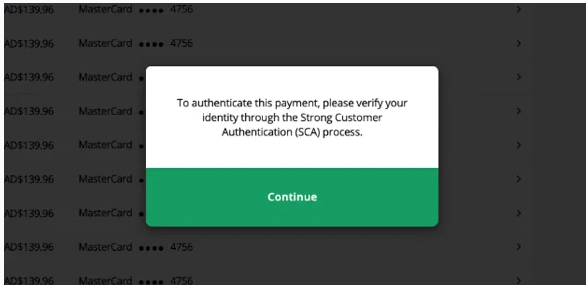
- Begin by selecting “continue” to be redirected to a new tab with a preselected bank associated with the payment card.
- A new tab will open, displaying the bank’s authentication screen.
- Follow the provided prompts to send a one-time code or notification to the customer.
- Request that the customer share the verification code or complete the payment process.
- Enter the received code to finalize verification and transaction.
Note that returning to the MyStudio tab before completing verification may temporarily show the payment as “successful,” but it will remain pending until verified in the other tab. Follow the prompts of sending the authentication code to the customer.
These steps may look different between bank. Please see our support article, which outlines a few examples at the bottom.


